<?xml version="1.0" encoding="utf-8"?><feed xmlns="http://www.w3.org/2005/Atom" ><generator uri="https://jekyllrb.com/" version="3.10.0">Jekyll</generator><link href="https://cloudtutorials.eu/feed.xml" rel="self" type="application/atom+xml" /><link href="https://cloudtutorials.eu/" rel="alternate" type="text/html" /><updated>2025-12-23T08:57:26+00:00</updated><id>https://cloudtutorials.eu/feed.xml</id><title type="html">OpenStack Cloud Tutorials</title><subtitle>Step by Step OpenStack Tutorials</subtitle><author><name>CloudTutorials</name></author><entry><title type="html">Migrations FAQ</title><link href="https://cloudtutorials.eu/articles/faq-migrations" rel="alternate" type="text/html" title="Migrations FAQ" /><published>2025-10-29T00:00:00+00:00</published><updated>2025-10-29T00:00:00+00:00</updated><id>https://cloudtutorials.eu/articles/faq-migrations</id><content type="html" xml:base="https://cloudtutorials.eu/articles/faq-migrations"><![CDATA[<p>Below you will find answers to the most frequently asked questions.</p>

<h2 id="how-can-i-prepare-my-instances-for-this-migration">How can I prepare my instances for this migration?</h2>

<ul>
  <li>Shutdown your instance, and start it up again prior to the migration to see if the instance starts up gracefully without interruption or error messages (a reboot won’t be sufficient).</li>
  <li>Make sure that cloud(base)-init is disabled before you start the migration.</li>
  <li>Perform a file-system check of all file-systems prior to migration.</li>
  <li>Please make sure your system has no pending updates, so that there won’t be any interruption of installing patches during the migration (as this might be prematurely interrupted).</li>
</ul>

<h2 id="tldr-can-you-give-me-a-short-summary">TL;DR, can you give me a short summary?</h2>

<ul>
  <li>Your instance will be migrated to a boot-from-volume instance.</li>
  <li>If you have a floating IP we will migrate it.</li>
  <li>We have created a new project for you on the new platform.</li>
  <li>If you use custom images or a snapshot to boot your instance from, we will migrate those glance images as well.</li>
  <li>If you have connected your instance to an internal network, we will extend that network into the new region.</li>
  <li>If you have a router for internet access on your network the public IP will change.</li>
  <li>If you have volumes attached to your instance, we will copy them to the new platform.</li>
  <li>If you have any snapshots on those volumes, those will be lost.</li>
  <li>If you do not disable cloud-init your SSH host key will change when migrating towards the new region.</li>
  <li>On Windows guests the admin password will be changed if cloudbase-init was not disabled.</li>
  <li>Windows instances might require reactivation of the license as the hardware of the VM is replaced</li>
  <li>We will use ICMP ping to determine if your instance is up and running, please prepare your instance accordingly.</li>
  <li>We will check commonly used ports (like port 22, 80, 443, etc).</li>
  <li>If you have a HA setup, there are some caveats</li>
  <li>Load balancers will be migrated once all instances have been migrated and will have some minutes of downtime.</li>
</ul>

<h2 id="not-all-my-instances-have-the-migration-metadata-whats-the-reason">Not all my instances have the migration metadata, what’s the reason?</h2>

<p>We’re finalizing the last steps to enable the migration of all instances to the new region</p>

<ul>
  <li>HA / vrrp setups will be migrated at a later stage.</li>
  <li>internal networks with custom routers will be migrated at a later stage.</li>
</ul>

<h2 id="will-our-ssh-keys-be-migrated">Will our SSH keys be migrated?</h2>

<p>Yes they will, your SSH keys will be copied to the new region but only for the instance (it will not be migrated to your user).</p>

<h2 id="my-instance-is-not-running-as-expected-after-migration-can-i-perform-a-roll-back">My instance is not running as expected after migration, can I perform a roll-back?</h2>

<p>Yes, once the migration has been successfully completed, you can perform a rollback by setting the metadata key <code>rollback-now</code> on your instance within the legacy Horizon dashboard.</p>

<p>If you do perform a rollback, please let us know the reason. We’re keen to understand what went wrong so we can improve the process and avoid similar situations in the future.</p>

<blockquote>
  <p><strong>Note</strong>: Any changes made on the new instance will not be carried back and should be considered lost. A rollback is only available within the first 5 days after the migration.</p>
</blockquote>

<h2 id="if-i-already-have-instances-named-equally-in-the-new-region-will-they-be-overwritten">If I already have instances named equally in the new region, will they be overwritten?</h2>

<p>No, we will not overwrite anything in the new region.</p>

<h2 id="what-will-be-the-expected-downtime-during-the-migration">What will be the expected downtime during the migration?</h2>

<ul>
  <li>We’ve seen instances with downtime of less than a minute, but for safety reasons you should consider up to 15 minutes (The migration depends on the amount of time to boot up the instance and start all services)</li>
  <li>Our tests indicate that downtime could be as little as 40 seconds during minimal load on your instance. A graceful shutdown will be initiated using the OpenStack APIs. A new instance is then spawned and created in the new region, with a copy of the disk. The process will monitor the startup time and if it exceeds 10 minutes, we will automatically initiate a rollback.</li>
  <li>If the instance is attached to an internal network its connection will be lost for up to 10 minutes. This connection is needed to synchronize the internal network between the legacy region and the new region.</li>
  <li>When the migration is finished and your instance is booted up successfully within the new region please include an additional 10 minutes for the internal network to become ready.</li>
  <li>If the internal network doesn’t respond within 20 minutes after the migration has been finished please contact support and initiate a rollback of your instance.</li>
  <li>Load balancers will have up to 5 minutes of downtime, as the load balancer needs to be recreated in the new region.</li>
</ul>

<h2 id="will-migration-of-an-instance-affect-my-other-operational-instances">Will migration of an instance affect my other operational instances?</h2>

<p>Unless you have created a dependency on that instance, your other instances will not be affected.</p>

<h2 id="what-will-happen-with-load-balancers-during-migration">What will happen with Load Balancers during migration?</h2>
<p>All load balancers will be migrated once all instances have been migrated. During the migration of the load balancer there will be some minutes of downtime, as the load balancer needs to be recreated in the new region. The migration of the load balancer will start automatically once all instances have been migrated and will be on the same day as the last instance migration of your project. Load balancers will be converted to Octava load balancers during migration and will have the flavor ‘Small’ assigned. We expect the performance to be similar to or better than the current load balancer performance.</p>

<h2 id="how-can-i-initiate-the-migration-myself">How can I initiate the migration myself?</h2>

<p>When your instance is flagged for migration, additional metadata is added to your instance named <code>o2o-scheduled-YYYY-MM-DDTHH:MM:SS</code>. You can schedule the migration by changing the date / time (times are in the europe/amsterdam timezone!) to your preference. A date / time in the past will start a migration as soon as a migration slot is available (normally within a minute).
Alternatively you can set metadata <code>o2o-migrate-now</code> on the metadata key <code>migrate_flag</code>.</p>

<p>To set or change the metadata of your instance, go to the Horizon interface Project &gt; Compute &gt; Instances. Click the more options triangle next to the instance and choose <code>Update Metadata</code>.</p>

<p><img class="rounded border border-dark" src="/assets/images/2025-10-29-faq-migrations/instance_update_metadata.png" width="auto" height="600" /></p>

<p>Open <code>Provider platform options</code> &gt; <code>Migration</code> and Click <code>+</code> on <code>Scheduling options</code>. Update the date/timestamp to your liking and click <code>Save</code></p>

<p><img class="rounded border border-dark" src="/assets/images/2025-10-29-faq-migrations/add_metadata.png" width="auto" height="400" /></p>

<h2 id="what-will-happen-when-i-dont-start-or-schedule-the-migration-myself">What will happen when I don’t start or schedule the migration myself?</h2>

<p>Your instance will be migrated during office hours (9:00-17:00 Europe/Amsterdam timezone) on the date we communicated by e-mail, and set in the metadata.</p>

<h2 id="can-i-migrate-outside-office-hours">Can I migrate outside office hours?</h2>

<p>Yes, by scheduling the migration using the provided metadata (see <a href="#how-can-i-initiate-the-migration-myself">How can I initiate the migration myself</a>)</p>

<h2 id="what-will-happen-if-the-migration-fails">What will happen if the migration fails?</h2>

<p>If the migration fails, your instance will be started again on the current OpenStack platform. We will investigate the cause of the failure and inform you about a new migration date.</p>

<h2 id="how-can-i-see-if-the-migration-was-successful">How can I see if the migration was successful?</h2>

<p>If the migration was successful, the instance will reach a ‘SHUTOFF’ state. This can be verified via either the OpenStack Legacy API or in the Horizon dashboard. The instance will be locked. The progress of the migration can be monitored through metadata key <code>_export_progress</code></p>

<h2 id="where-can-i-manage-my-migrated-instance">Where can I manage my migrated instance?</h2>

<p>Your migrated instance can be managed through the new Horizon dashboard, accessible through the Control Panel.</p>

<h2 id="my-instance-is-connected-through-an-internal-network-to-my-other-instances-does-this-still-work-after-migration">My instance is connected through an internal network to my other instances, does this still work after migration?</h2>

<p>Yes, your internal network will be expanded into the new region.</p>

<h2 id="i-dont-have-any-projects-in-new-region-do-i-have-to-create-a-new-one">I don’t have any projects in new region, do I have to create a new one?</h2>

<p>No, if you don’t have any projects created in our new region, we have already created a project for your convenience.</p>

<h2 id="i-have-multiple-projects-in-the-new-region-can-you-migrate-my-current-resources-to-my-existing-project">I have multiple projects in the new region, can you migrate my current resources to my existing project?</h2>

<p>Yes, please contact support with the project mapping(s) you’d want us to use, so that we can configure it accordingly.</p>

<h2 id="what-happens-with-snapshots-attached-to-my-volumes">What happens with snapshots attached to my volumes?</h2>

<p>Those will be lost, as we are unable to duplicate snapshots from the legacy to the new platform. When you want to save a snapshot of your volume, create a new volume with the snapshot as source. This can be done in Horizon: Volumes &gt; New Volume &gt; Clone an existing volume, here you select the volume where you want to clone the snapshot from and you can select the snapshot itself.</p>

<h2 id="are-glance-images-snapshotscustom-images-also-imported-into-the-new-region">Are glance images (snapshots/custom images) also imported into the new region?</h2>

<p>Yes, but only if the image is still available (not deleted).</p>

<h2 id="do-i-keep-my-current-ip-addresses">Do I keep my current IP addresses?</h2>

<p>Yes, all of your public (floating) and internal IP addresses will be migrated.</p>

<h2 id="i-would-like-to-migrate-all-my-resources-asap-is-that-possible">I would like to migrate all my resources ASAP, is that possible?</h2>

<p>We are continuously working on resolving impediments that might block some migrations. You can contact support to validate if your instances can already be migrated.</p>

<h2 id="will-i-still-be-billed-for-my-migrated-resources-in-the-old-platform">Will I still be billed for my migrated resources in the old platform?</h2>

<p>When the first migration is started we will bill your current resources until we migrated all of your project’s resources. When all resources in your project are migrated, we will start billing your resources from ams2 and stop billing from the legacy platform.</p>

<h2 id="what-will-happen-with-my-windows-license">What will happen with my Windows license?</h2>

<p>When your virtual machine is migrated, a new virtual machine is created on our destination platform. Windows will detect this new hardware automatically and configure the operating system appropriately. After the migration, it is possible your virtual machine needs to re-activate its license. To verify if your license is properly activated, please go to Windows System settings -&gt; Activation -&gt; Troubleshoot or Activate to verify activation or re-activate your license.</p>

<h2 id="will-my-ssh-host-key-change-if-cloud-init-is-enabled">Will my SSH host key change if cloud-init is enabled?</h2>

<p>Yes, the migration from the legacy platform to the new region will result in a new UUID and name for your instance. Due to the way cloud-init works by default, this will result in cloud-init to re-initialise your system as if it was newly spawned. This will also cause your SSH host key to be renewed. If you don’t want this, please disable cloud-init before the migration to the new region starts.</p>

<h2 id="what-flavor-will-my-new-instance-get">What flavor will my new instance get?</h2>

<p>We have carefully selected destination flavors that match the specifications and price of your OpenStack Legacy flavor as closely as possible. See the following table how flavors are matched. If the flavor is not sufficient, you can resize your instance after migration to another flavor.</p>

<table style="width: 400px;">
  <thead>
    <tr>
      <th>Openstack Legacy</th>
      <th>destination</th>
    </tr>
  </thead>
  <tbody>
    <tr>
      <td>m1.tiny</td>
      <td>Small HD 2GB</td>
    </tr>
    <tr>
      <td>m1.small</td>
      <td>Standard 4GB</td>
    </tr>
    <tr>
      <td>m1.medium</td>
      <td>Small HD 8GB</td>
    </tr>
    <tr>
      <td>m1.xlarge</td>
      <td>Small HD 32GB</td>
    </tr>
    <tr>
      <td>m1.large</td>
      <td>Small HD 16GB</td>
    </tr>
    <tr>
      <td>m1.tiny.windows</td>
      <td>Standard 1GB</td>
    </tr>
    <tr>
      <td>m1.small.windows</td>
      <td>Standard 4GB</td>
    </tr>
    <tr>
      <td>m1.medium.windows</td>
      <td>Small HD 8GB</td>
    </tr>
    <tr>
      <td>m1.large.windows</td>
      <td>Small HD 16GB</td>
    </tr>
    <tr>
      <td>m1.xlarge.windows</td>
      <td>Small HD 32GB</td>
    </tr>
    <tr>
      <td>vps.1</td>
      <td>Standard 1GB</td>
    </tr>
    <tr>
      <td>vps.2</td>
      <td>Standard 4GB</td>
    </tr>
    <tr>
      <td>vps.3</td>
      <td>Medium HD 8GB</td>
    </tr>
  </tbody>
</table>

<hr />]]></content><author><name>CloudTutorials</name></author><category term="Migrations" /><summary type="html"><![CDATA[Below you will find answers to the most frequently asked questions.]]></summary></entry><entry><title type="html">Create Certbot Ssl Loadbalancer</title><link href="https://cloudtutorials.eu/articles/create-certbot-ssl-loadbalancer" rel="alternate" type="text/html" title="Create Certbot Ssl Loadbalancer" /><published>2025-01-30T00:00:00+00:00</published><updated>2025-01-30T00:00:00+00:00</updated><id>https://cloudtutorials.eu/articles/create-certbot-ssl-loadbalancer</id><content type="html" xml:base="https://cloudtutorials.eu/articles/create-certbot-ssl-loadbalancer"><![CDATA[<p>This tutorial guides you through the process of adding an automated certificate renewal for 
your existing load balancer with HTTPS_OFFLOADING. Using command line tools, certbot, DNSaaS, 
cron, Barbican and a custom script</p>

<hr />

<h2 id="requirements">Requirements</h2>
<p>Before adding Let’s Encrypt certificates to your load balancer, we first need to create a load 
balancer with HTTPS_OFFLOADING, like described in <a href="/articles/create-a-ssl-loadbalancer">Create a ssl loadbalancer</a></p>

<p>We need a linux machine with the OpenStack command line tools <a href="/articles/using-the-cli-linux">Using the OpenStack CLI article</a>.</p>

<p>For this guide we assume you have already created a DNS Zone, if you haven’t
done this yet please read the following article:
<a href="/articles/create-a-dns-zone">Create a DNS Zone</a></p>

<p>We will be storing the Let’s Encrypt SSL certificates in OpenStack. We are using 
Keymanager to do so. To read more about Keymanaer, refer to the article 
<a href="/articles/introduction-to-keymanager">Introduction to Keymanager</a>.</p>

<h3 id="preparing-the-linux-server">Preparing the linux server</h3>

<p>For the script to work, we need a couple applications and scripts.</p>

<p><strong>Step 1</strong><br />
Install tools with your prefered linux package manager.</p>
<pre><code class="language-bash"># For Debian-based systems
sudo apt install python3 python3-pip certbot

# For Redhat-based systems
sudo yum install python3 python3-pip certbot
</code></pre>
<p><strong>Step 2</strong><br />
Install the python packages with pip.</p>
<pre><code class="language-bash">sudo pip install openstacksdk cryptography certbot git+https://opendev.org/x/certbot-dns-openstack.git
</code></pre>

<p><strong>Step 3</strong><br />
Download the script from cloudtutorials. We recommend you reading the script before executing, this is always good practice.</p>
<pre><code class="language-bash">sudo wget -O /root/renew_certificates.py https://raw.githubusercontent.com/CloudTutorials/OpenStack-Docs/refs/heads/main/assets/scripts/2025-01-30-create-certbot-ssl-loadbalancer/renew_certificates.py
</code></pre>

<p><strong>Step 4</strong> 
Gather the loadbalancer listener id(s) from the OpenStack project to verify which listeners 
you want to add the certificates to.</p>
<pre><code class="language-bash">openstack --os-cloud ams2 loadbalancer listener list
</code></pre>

<h3 id="running-the-script-and-schedule-it">Running the script and schedule it</h3>

<p><strong>Step 1</strong> 
Run the script once to evaluate check if everything works</p>
<pre><code class="language-bash">sudo python3 /root/renew_certificates.py --os-cloud &lt;cloud&gt; --domain *.test.example.com --renew \
 --create-barbican-secret --octavia-listener &lt;UUID&gt;
</code></pre>
<p>We expect the script to request a certificate through certbot. Certbot on its turn will use a 
plugin to create a DNS record in OpenStack Designate to validate the domain. 
The option –create-barbican-secret will gather the certificates from certbot’s live directories 
and upload the certificate to OpenStack Barbican. 
The option –octavia-listener <UUID> will configure all listeners supplied with the uploaded 
certificate.</UUID></p>

<p><strong>Step 2</strong>
When the script is running succesfully, we can create a cron to schedule the creation.</p>
<pre><code class="language-bash">sudo cat &gt; /etc/cron.d/renew_certs &lt;&lt; EOF
# /etc/cron.d/renew_certs: crontab entries for the automated OpenStack
# Certificate renewal
#
# Upstream certbot recommends attempting renewal twice a day
#
# Eventually, this will be an opportunity to validate certificates
# haven't been revoked, etc.  Renewal will only occur if expiration
# is within 30 days.

SHELL=/bin/sh
PATH=/usr/local/sbin:/usr/local/bin:/sbin:/bin:/usr/sbin:/usr/bin

0 */12 * * * root test -x /usr/bin/certbot &amp;&amp; perl -e 'sleep int(rand(43200))' &amp;&amp; python3 /root/renew_certificates.py --os-cloud &lt;cloud&gt; --domain *.test.example.com --renew  --create-barbican-secret --octavia-listener &lt;UUID&gt; &gt;&gt; /var/log/renew_cert.log 2&gt;&amp;1

EOF
</code></pre>]]></content><author><name>CloudTutorials</name></author><category term="Loadbalancers" /><summary type="html"><![CDATA[This tutorial guides you through the process of adding an automated certificate renewal for your existing load balancer with HTTPS_OFFLOADING. Using command line tools, certbot, DNSaaS, cron, Barbican and a custom script]]></summary></entry><entry><title type="html">Tutorial: Updating CloudVPS Boss Backup Script for Keystone V3 Compatibility</title><link href="https://cloudtutorials.eu/articles/update-cloudvps-boss-to-v3.0.0" rel="alternate" type="text/html" title="Tutorial: Updating CloudVPS Boss Backup Script for Keystone V3 Compatibility" /><published>2024-12-17T00:00:00+00:00</published><updated>2024-12-17T00:00:00+00:00</updated><id>https://cloudtutorials.eu/articles/update-cloudvps-boss-to-v3.0.0</id><content type="html" xml:base="https://cloudtutorials.eu/articles/update-cloudvps-boss-to-v3.0.0"><![CDATA[<p>This tutorial guides you through updating the CloudVPS-Boss Backup script to make it compatible with OpenStack Keystone V3.</p>

<p><strong>Note</strong>: This script enables you to create backups to your ObjectStore project using the <strong>Restic</strong> backup tool instead of <strong>Duplicity</strong>. Please be aware that the CloudVPS-Boss script is <strong>not officially supported</strong>.</p>

<hr />

<h2 id="notice">Notice</h2>

<p>In this tutorial, we will install <strong>CloudVPS-Boss version 3.0.0</strong>, a newer version of the script that is compatible with the latest OpenStack Keystone V3.</p>

<h3 id="important">Important!</h3>
<p>When you upgrade to the new V3 implementation using the Restic-backup method, your backups will restart. This means:</p>
<ul>
  <li>Your old backups <strong>will still exist</strong> but cannot be restored using Restic.</li>
  <li>We recommend creating a <strong>new backup immediately</strong> after installing the new version to ensure you have a backup that can be restored with Restic.</li>
  <li>Old backups created with a previous version of CloudVPS-Boss cannot be restored and will <strong>not</strong> be removed automatically. To avoid paying for stale backups, manually remove them after <strong>1–2 weeks</strong>.</li>
</ul>

<hr />

<h2 id="installing-cloudvps-boss-v300">Installing CloudVPS-Boss v3.0.0</h2>

<p>Follow these steps to install CloudVPS-Boss:</p>

<ol>
  <li><strong>Clone the repository and run the installer</strong>:
    <pre><code class="language-bash"> git clone https://github.com/CloudVPS/CloudVPS-Boss.git --branch support-v3-and-use-restic
 cd CloudVPS-Boss
 bash install.sh
</code></pre>
  </li>
  <li><strong>Source the credentials</strong>:<br />
These credentials are required to create the Restic repository in your ObjectStore project.<br />
<em>(You will not receive any feedback from the CLI client; this is expected)</em>:
    <pre><code class="language-bash">source /etc/cloudvps-boss-v3/v3-auth.conf
</code></pre>
  </li>
  <li><strong>Create a Restic repository</strong>:<br />
Use the following command to initialize the repository. Choose a secure password and store it safely.<br />
<em>(You will need this password to restore backups or in the next step)</em>:
    <pre><code class="language-bash">restic init -r swift:cloudvps-boss-v3:/
</code></pre>
  </li>
  <li><strong>Store the restic password</strong>:<br />
Save the password used for the Restic repository in the configuration file:
    <pre><code class="language-bash">nano /etc/cloudvps-boss-v3/restic-password.conf
</code></pre>
    <p>Save the file by pressing <code>CTRL + X</code> and then <code>Y</code>.</p>
  </li>
  <li><strong>Start the backup</strong>:<br />
Once configured, you can start the backup process. By default, backups run <strong>daily</strong>. For more configuration options, refer to the optional steps:
    <pre><code class="language-bash">cloudvps-boss
</code></pre>
  </li>
</ol>

<hr />

<h2 id="credits">Credits</h2>

<p>Special thanks to <a href="https://www.cream.nl/" target="_blank">Cream Commerce B.V.</a> for implementing Restic backup in their own fork, we have used this implementation in the v3.0.0 version of the CloudVPS-Boss script.<br />
You can find their CloudVPS-Boss fork <a href="https://github.com/creamcloud/backup" target="_blank">here</a>.</p>]]></content><author><name>CloudTutorials</name></author><category term="BOSS-Backup" /><summary type="html"><![CDATA[This tutorial guides you through updating the CloudVPS-Boss Backup script to make it compatible with OpenStack Keystone V3.]]></summary></entry><entry><title type="html">Create A Ssl Loadbalancer</title><link href="https://cloudtutorials.eu/articles/create-a-ssl-loadbalancer" rel="alternate" type="text/html" title="Create A Ssl Loadbalancer" /><published>2024-03-08T00:00:00+00:00</published><updated>2024-03-08T00:00:00+00:00</updated><id>https://cloudtutorials.eu/articles/create-a-ssl-loadbalancer</id><content type="html" xml:base="https://cloudtutorials.eu/articles/create-a-ssl-loadbalancer"><![CDATA[<p>This tutorial guides you through the process of creating a load balancer with SSL encryption. 
The article assumes there is an internal network present with working http web servers listening on 
port 80. When you still need to create webservers and an internal network, please use the first part 
of article <a href="/articles/create-a-loadbalancer-with-webservers">Create a loadbalancer with webservers</a></p>

<hr />

<h2 id="ssl-certificate">SSL certificate</h2>
<p>Before creating the load balancer, we need to store our SSL certificaten in OpenStack. We are using 
Keymanager to do so. To read more about Keymanaer, refer to the article 
<a href="/articles/introduction-to-keymanager">Introduction to Keymanager</a>.
Currently it is not possible to upload the certificate through Horizon so we will be using the CLI.
There are multiple options to upload the certificate to barbican. Our advise would be to use the
container approach 
(<a href="#uploading-the-ssl-certificate-to-keymanager-in-a-container">Uploading the SSL certificate to keymanager in a container</a>)
. The easier option is the combined, although slightly less secure, approach
which has the benefit of being selectable in horizon after storing 
(<a href="#uploading-the-ssl-certificate-to-keymanager-as-single-file">Uploading the SSL certificate to keymanager as single file</a>)
.</p>

<h3 id="uploading-the-ssl-certificate-to-keymanager-in-a-container">Uploading the SSL certificate to keymanager in a container</h3>

<p>The prefered way of storing a certificate in barbican for Octavia is to use seperate secrets to
store the server certificate, private key, intermediate certificates and the passhprase. After
storing the secrets, we can combine them using a certificate container. The downside of this
approach however is secret containers are not yet supported in Horizon to use for Octavia.</p>

<p><strong>Prerequisites</strong></p>
<ul>
  <li>All certificates files are stored on the OpenStack CLI server. We need the following files:
    <ul>
      <li>certificate.pem (the certificate file for the load balancer)</li>
      <li>private.key (the private key for the load balancer, password protected)</li>
      <li>intermediate.pem (intermediate certificates in proper order of your SSL supplier)</li>
    </ul>
  </li>
  <li>Passphrase to decrypt the private key</li>
  <li>openssl tooling installed on the OpenStack CLI server</li>
</ul>

<p><strong>Step 1</strong><br />
First make sure you have setup the OpenStack CLI and that you are able to
execute commands using the <code>openstack</code> command. For more information please
refer to the
<a href="/articles/using-the-cli-linux">Using the OpenStack CLI article</a>.</p>

<p><strong>Step 2</strong><br />
Store the certificate in barbican</p>
<pre><code class="language-bash"># Store variables
certificate=certificate.pem
domain="$(openssl x509 -noout -subject -in "$certificate"|cut -d= -f 3| tr -d ' ')"
name="${domain}_certificate"

# Store the secret in keymanager
openstack secret store --name="${name}" -t 'application/octet-stream' -e 'base64' \
--payload="$(base64 &lt; "$certificate")" --expiration $(date --date="$(openssl x509 -enddate -noout \
-in "$certificate"|cut -d= -f 2)" --iso-8601)
</code></pre>
<p>Make sure to save the returned secret_href as variable, we need that later</p>
<pre><code class="language-bash">certificate_url="https://keymanager.domain.tld:/v1/secrets/uuid"
</code></pre>

<p><strong>Step 3</strong><br />
Store the passhprase for the private key in barbican.</p>

<pre><code class="language-bash"># Store variables
name="${domain}_passphrase"

# Store the secret in keymanager
openstack secret store --secret-type passphrase --name ${name} \
--payload $(read -sp "Password: ";echo ${REPLY})
</code></pre>
<p>Answer the password question and press enter</p>

<p>Make sure to save the returned secret_href as variable, we need that later</p>
<pre><code class="language-bash">passphrase_url="https://keymanager.domain.tld:/v1/secrets/uuid"
</code></pre>

<p><strong>Step 4</strong><br />
Store the private key in barbican</p>

<pre><code class="language-bash"># Store variables
name="${domain}_private_key"
certificate=private.key

# Store the secret in keymanager
openstack secret store --name="${name}" -t 'application/octet-stream' -e 'base64' \
--payload="$(base64 &lt; "$certificate")"
</code></pre>
<p>Make sure to save the returned secret_href as variable, we need that later</p>
<pre><code class="language-bash">private_key_url="https://keymanager.domain.tld:/v1/secrets/uuid"
</code></pre>

<p><strong>Step 5</strong><br />
Store all intermediate certificates in barbican</p>

<pre><code class="language-bash"># Store variables
certificate=intermediate.pem
name="${domain}_intermediates"

# Store the secret in keymanager
openstack secret store --name="${name}" -t 'application/octet-stream' -e 'base64' \
--payload="$(base64 &lt; "$certificate")" --expiration $(date --date="$(openssl x509 -enddate -noout \
-in "$certificate"|cut -d= -f 2)" --iso-8601)
</code></pre>
<p>Make sure to save the returned secret_href as variable, we need that later</p>
<pre><code class="language-bash">intermediates_url="https://keymanager.domain.tld:/v1/secrets/uuid"
</code></pre>

<p><strong>Step 6</strong><br />
Create a certificate container containing the certificate, all intermediates
the passphrase and the private key.</p>

<pre><code class="language-bash"># Store variables
name="${domain}_container"

# Store the secret in keymanager
openstack secret container create --name "${name}" --type certificate \
-s "certificate=${certificate_url}" -s "intermediates=${intermediates_url}" \
-s "private_key=${private_key_url}" -s "private_key_passphrase=${passphrase_url}"

</code></pre>
<p>Make sure to save the returned secret_href as variable, we need that later</p>
<pre><code class="language-bash">octavia_certificate_url="https://keymanager.domain.tld:/v1/containers/uuid"
</code></pre>

<h3 id="uploading-the-ssl-certificate-to-keymanager-as-single-file">Uploading the SSL certificate to keymanager as single file</h3>
<p>The alternative way to store a certificate to use with an Octavia loadbalancer is to create a single
pkcs12 file with all certificates without password protection.
The downside of this approach is we need to temporarily store the unencrypted private key for the
load balancer on the OpenStack CLI server. The benefit is we can select the certificate in Horizon.</p>

<p><strong>Prerequisites</strong></p>
<ul>
  <li>The server certificate, intermediate certificates and private key are stored in the proper order in
a single file on the OpenStack CLI server named ‘certificate.pem’</li>
  <li>OpenSSL tooling installed on the OpenStack CLI server</li>
</ul>

<p><strong>Step 1</strong><br />
First make sure you have setup the OpenStack CLI and that you are able to
execute commands using the <code>openstack</code> command. For more information please
refer to the
<a href="/articles/using-the-cli-linux">Using the OpenStack CLI article</a>.</p>

<p><strong>Step 2</strong><br />
Convert the certificates to a pkcs12 certificate (skip this if you already have a pkcs12 encoded
file with all required certificates):</p>
<pre><code class="language-bash">openssl pkcs12 -export -inkey private.key -in certificate.pem -certfile intermediate.pem \
-passout pass: -out complete.p12
</code></pre>

<p><strong>Step 3</strong><br />
Store the certificate in barbican</p>
<pre><code class="language-bash">certificate=complete.p12
domain="$(openssl pkcs12 -in "$certificate" -nokeys -passin pass: | openssl x509 -noout \
-subject | cut -d= -f 3| tr -d ' ')"
name="${domain}_complete_certificate"
expiration_date="$(date --date="$(openssl pkcs12 -in "$certificate" -nokeys -passin pass: | \
openssl x509 -enddate -noout | cut -d= -f 2)" --iso-8601)"
openstack secret store --name="${name}" -t 'application/octet-stream' -e 'base64' \
--payload="$(base64 &lt; "$certificate")" --expiration "${expiration_date}"
</code></pre>
<p>Make sure to save the returned secret_href as variable, we need that later</p>
<pre><code class="language-bash">octavia_certificate_url="https://keymanager.domain.tld:/v1/secrets/uuid"
</code></pre>

<hr />

<h2 id="creating-the-loadbalancer">Creating the loadbalancer</h2>

<h2 id="creating-the-loadbalancer-using-the-openstack-dashboard">Creating the loadbalancer using the OpenStack Dashboard</h2>
<blockquote>
  <p>Note: When you decided to store your certificate through a container, it is not easy to create the
load balancer through the OpenStack Dashboard. Follow the step 
(<a href="#creating-the-loadbalancer-using-the-openstack-cli">Creating the loadbalancer using the OpenStack CLI</a>)</p>
</blockquote>

<p>Now we can create the loadbalancer. We will create a loadbalancer with a listener, a pool and a
healthmonitor.</p>

<p><strong>Step 1</strong><br />
Navigate to the <code>Network</code> tab and select <code>Load Balancers</code>.<br />
<strong>Step 2</strong><br />
Initiate the process by clicking on the <code>Create Load Balancer</code> button.<br />
<strong>Step 3</strong><br />
Enter details in the following fields:</p>
<ul>
  <li><strong>Name</strong>: webserver-loadbalancer</li>
  <li><strong>IP Address</strong>: Leave empty for now</li>
  <li><strong>Description</strong>: Loadbalancer for our webservers</li>
  <li><strong>Availability Zone</strong>: Leave empty or choose an availability zone to your liking.</li>
  <li><strong>Flavor</strong>: Choose a flavor to your liking for this tutorial we use the Medium flavor.</li>
  <li><strong>Subnet</strong>: webserver-subnet</li>
</ul>

<p><strong>Step 4</strong><br />
Proceed to the <code>Listener Details</code> tab by clicking on <code>Next</code>.<br />
<strong>Step 5</strong><br />
Complete the following fields:</p>
<ul>
  <li><strong>Name</strong>: webserver-listener-https</li>
  <li><strong>Description</strong>: HTTPS Listener for our webservers</li>
  <li><strong>Protocol</strong>: TERMINATED HTTPS</li>
  <li><strong>Protocol Port</strong>: 443</li>
  <li><strong>Admin State Up</strong>: Yes
Leave all others options as they are for now.</li>
</ul>

<p><strong>Step 6</strong><br />
Proceed to the <code>Pool Details</code> tab by clicking on <code>Next</code>.<br />
<strong>Step 7</strong><br />
Enter information in the following fields:</p>
<ul>
  <li><strong>Create Pool</strong>: Yes</li>
  <li><strong>Name</strong>: webserver-pool-http</li>
  <li><strong>Description</strong>: HTTP Pool for our webservers</li>
  <li><strong>Algorithm</strong>: Least connections</li>
  <li><strong>Session Persistence</strong>: Leave None</li>
  <li><strong>TLS Enabled</strong> No</li>
  <li><strong>Admin State Up</strong>: Yes
    <blockquote>
      <p>Note: Find out more about the <code>Algorithm</code> and <code>Session Persistence</code> fields in the article
<a href="/articles/introduction-into-loadbalancer">Introduction into loadbalancer</a></p>
    </blockquote>
  </li>
</ul>

<p><strong>Step 8</strong><br />
Proceed to the <code>Pool Members</code> tab by clicking on <code>Next</code>.<br />
<strong>Step 9</strong><br />
Identify the instances you wish to include and click on <code>Add</code> for each.<br />
<strong>Step 10</strong><br />
Enter the designated port for the host (80) and set the weight (1). Repeat this step
for all webserver hosts you’re adding.</p>
<blockquote>
  <p>Note: In this tutorial, the connection from the load balancer to the webservers is not encrypted.
The SSL encryption is hereby offloaded to the load balancer. If it is required to have an encrypted
connection to the webservers, the webservers itself need an ssl certificate as well. This is outside
of the scope for this tutorial.</p>
</blockquote>

<p><strong>Step 11</strong><br />
Navigate to the <code>Health Monitor</code> tab by clicking on <code>Next</code>.<br />
<strong>Step 12</strong><br />
Complete the following fields:</p>
<ul>
  <li><strong>Name</strong>: webserver-healthmonitor-http</li>
  <li><strong>Type</strong>: HTTP</li>
  <li><strong>Max Retries Down</strong>: 3</li>
  <li><strong>Delay</strong>: 5</li>
  <li><strong>Max Retries</strong>: 3</li>
  <li><strong>Timeout</strong>: 5</li>
  <li><strong>HTTP Method</strong>: GET</li>
  <li><strong>Excepted Codes</strong>: 200</li>
  <li><strong>URL Path</strong>: /</li>
  <li><strong>Admin State Up</strong>: Yes</li>
</ul>

<p><strong>Step 13</strong><br />
Proceed to the <code>SSL Certificates</code> tab by clicking on <code>Next</code>.<br />
<strong>Step 14</strong><br />
Add the appropriate certificate from the available certificates. It will be named
<code>DomainName_complete_certificate</code></p>
<blockquote>
  <p>Note: It is possible to add multiple certificates. The load balancer will use SNI to select the
appropriate certificate</p>
</blockquote>

<p><strong>Step 15</strong><br />
Initiate the creation of your load balancer by clicking on <code>Create Load Balancer</code>.<br />
<strong>Step 16</strong><br />
Locate the load balancer you’ve just set up and click the small arrow beside it. From
the dropdown menu, select <code>Associate Floating IP</code>.<br />
<strong>Step 17</strong><br />
Select an available floating IP or choose the net-float pool, then confirm your choice
by clicking on <code>Associate</code>.</p>

<p><strong>Step 18</strong><br />
Finalize the deployment and start testing
(<a href="#testing-the-loadbalancer">Testing the loadbalancer</a>)</p>

<h2 id="creating-the-loadbalancer-using-the-openstack-cli">Creating the loadbalancer using the OpenStack CLI</h2>
<p>Now we can create the loadbalancer. We will create a loadbalancer with a listener, a pool and a
healthmonitor. It is only possible to create the loadbalancer through</p>

<p><strong>Prerequisites</strong><br />
We should already have a bash variable set with the certificate location</p>
<pre><code class="language-bash">octavia_certificate_url="https://keymanager.domain.tld:/v1/containers/uuid"
</code></pre>
<p><strong>Step 1</strong><br />
Gather the subnet uuid for the internal network:</p>
<pre><code class="language-bash">openstack subnet list
vip_subnet_uuid=uuid
</code></pre>

<p><strong>Step 2</strong><br />
Create the loadbalancer</p>
<pre><code class="language-bash">openstack loadbalancer create --name "webserver-loadbalancer" \
--description "Loadbalancer for our webservers" --flavor Medium --vip-subnet-id "${vip_subnet_uuid}"
</code></pre>
<p>Make sure to save the returned <code>id</code> as variable, we need that later</p>
<pre><code class="language-bash">lb_uuid=uuid
</code></pre>

<p><strong>Step 3</strong><br />
Create the listener</p>
<pre><code class="language-bash">openstack loadbalancer listener create "${lb_uuid}" --name "webserver-listener-https" \
--description "HTTPS Listener for our webservers" --protocol TERMINATED_HTTPS --protocol-port 443 \
--default-tls-container-ref "${octavia_certificate_url}" 
</code></pre>

<p>Make sure to save the returned <code>id</code> as variable, we need that later</p>
<pre><code class="language-bash">listener_uuid=uuid
</code></pre>

<p><strong>Step 4</strong><br />
Create the pool</p>

<pre><code class="language-bash">openstack loadbalancer pool create --name "webserver-pool-http" \
--description "HTTP Pool for our webservers" --protocol HTTP --lb-algorithm LEAST_CONNECTIONS \
--listener "${listener_uuid}"
</code></pre>
<p>Make sure to save the returned <code>id</code> as variable, we need that later</p>
<pre><code class="language-bash">pool_uuid=uuid
</code></pre>

<p><strong>Step 5</strong><br />
Create the health monitor</p>

<pre><code class="language-bash">openstack loadbalancer healthmonitor create "${pool_uuid}" --name "webserver-healthmonitor-http" \
--type HTTP --delay 5 --timeout 5 --max-retries 3
</code></pre>

<p><strong>Step 6</strong><br />
Create the members</p>

<p>repeat the following command for all webservers you want to add to the pool</p>

<pre><code class="language-bash">openstack loadbalancer member create "${pool_uuid}" --protocol-port 80 --name "&lt;server_name&gt;" \
--address "&lt;server_address&gt;"
</code></pre>

<p><strong>Step 7</strong><br />
Finalize the deployment and start testing
(<a href="#testing-the-loadbalancer">Testing the loadbalancer</a>)</p>

<hr />

<h2 id="testing-the-loadbalancer">Testing the loadbalancer.</h2>
<p>Now that the load balancer is created, we can test it</p>

<p><strong>Step 1</strong><br />
Create an A record in DNS for the domain to point to the floating IP address
<a href="/articles/managing-dns-records">managing DNS records</a></p>

<p><strong>Step 2</strong><br />
Await the update of the load balancer’s Operating Status to ONLINE and the DNS to
propagate. Once this status is achieved, navigate to <code>https://DomainName</code> in your web browser to 
witness your load balancer functioning.</p>

<p><strong>Step 3</strong><br />
Verify the SSL of the load balancer to have your URL checked with the <br />
<a href="https://www.ssllabs.com/ssltest/analyze.html">SSL Labs SSL Server Test</a></p>

<p>If you want to customize your Loadbalancer even further we highly recommend you to read the 
<a href="https://docs.openstack.org/octavia/latest/user/index.html">OpenStack Octavia Loadbalancer documentation</a></p>]]></content><author><name>CloudTutorials</name></author><category term="Loadbalancers" /><summary type="html"><![CDATA[This tutorial guides you through the process of creating a load balancer with SSL encryption. The article assumes there is an internal network present with working http web servers listening on port 80. When you still need to create webservers and an internal network, please use the first part of article Create a loadbalancer with webservers]]></summary></entry><entry><title type="html">Introduction into Keymanager</title><link href="https://cloudtutorials.eu/articles/introduction-to-keymanager" rel="alternate" type="text/html" title="Introduction into Keymanager" /><published>2024-03-06T00:00:00+00:00</published><updated>2024-03-06T00:00:00+00:00</updated><id>https://cloudtutorials.eu/articles/introduction-to-keymanager</id><content type="html" xml:base="https://cloudtutorials.eu/articles/introduction-to-keymanager"><![CDATA[<p>In this article, the basic concept of OpenStack Barbican key manager explained.
this includes the uses and options.</p>

<h2 id="introduction">Introduction</h2>

<p>To protect your data in a public cloud encryption becomes more important every
day. One could think of encrypting traffic between clients and servers with
https, encrypting volumes or just encrypting valuable key/value pairs.
OpenStack Barbican provides a REST API designed for the secure storage,
provisioning and management of secrets such as passwords, encryption keys and
X.509 Certificates.</p>

<hr />

<h2 id="use-cases">Use cases</h2>
<p>Although the OpenStack key manager can be used to store secrets and raw binary
data, it is most used to store Symmetric Keys, Asymmetric Keys and Certificates
for other OpenStack services to use.</p>

<h3 id="https-load-balancer">HTTPS Load balancer</h3>
<p>With OpenStack Octavia, it is possible to create a high available load
balancer. To allow the load balancer to encrypt http traffic with certificates,
both private keys, intermediate and server certificates can be stored in
barbican to be accessed by Octavia. On the creation, restart or update of an
Octavia load balancer with terminated https, Octavia will request the
certificates from Barbican.</p>

<h3 id="encrypted-volumes">Encrypted volumes</h3>
<p>We can use Barbican to manage Block storage (cinder) encryption keys. LUKS is
used to encrypt the data on the disks attached to your instances. The keys for
the disk encryption are automatically generated by cinder and securely stored
in barbican. When attaching an encrypted volume to an instance, nova retrieves
the key from barbican and provides it to the compute proces on the compute
node. <a href="/articles/create-a-volume">Create a volume</a></p>

<h2 id="inner-workings">Inner workings</h2>
<p>Just like most OpenStack projects, barbican can be used with an API. The
barbican API can be used to store and retreive secrets. When providing barbican
with a secret for example a private key, barbican will encrypt the keys before
storing them in a database. The encryption for the secrets is
configurable through plugins and most cloud providers use Hardware Security
Modules (or HSMs) to securely protects your cryptographic keys, but at the same
time makes them easily accessible. When retrieved, barbican will decrypt the
secrets and provide them to you or the service requesting the secrets.
Barbican makes use of OpenStack Keystone to validate if a user is allowed to
store and retrieve secrets.</p>

<hr />

<h2 id="conclusion">Conclusion</h2>
<p>A keymanager can be an essential part to protect your cloud infrastructure.
The OpenStack barbican keymanager service provides secure storage, provisioning
and management of secrets, such as passwords, encryption keys, etc.</p>]]></content><author><name>CloudTutorials</name></author><category term="Keymanager" /><summary type="html"><![CDATA[In this article, the basic concept of OpenStack Barbican key manager explained. this includes the uses and options.]]></summary></entry><entry><title type="html">Using the OpenStack CLI (Linux)</title><link href="https://cloudtutorials.eu/articles/using-the-cli-linux" rel="alternate" type="text/html" title="Using the OpenStack CLI (Linux)" /><published>2024-03-04T00:00:00+00:00</published><updated>2024-03-04T00:00:00+00:00</updated><id>https://cloudtutorials.eu/articles/using-the-cli-linux</id><content type="html" xml:base="https://cloudtutorials.eu/articles/using-the-cli-linux"><![CDATA[<p>For Windows installations please see
<a href="/articles/using-the-cli-windows">Using the OpenStack CLI (Windows)</a>.</p>

<p>The OpenStack Command Line Interface (CLI) is a powerful tool for managing
OpenStack resources. This guide will show you how to install the OpenStack CLI,
log in to the OpenStack CLI, and use the OpenStack CLI to manage OpenStack
resources.</p>

<p>This guide makes use of the <code>clouds.yaml</code> file to store OpenStack credentials.
You can also use environment variables to store your credentials using the
<code>openrc</code> file. The <code>clouds.yaml</code> file is the recommended way to store your
OpenStack credentials, as it is easier to manage and add multiple clouds
(projects, regions etc.).</p>

<hr />

<h2 id="install-the-openstack-cli">Install the OpenStack CLI</h2>
<p>The installation of the OpenStack CLI is different for each Operating System 
and distrubution. Below you will find the installation instructions for the
most common Linux distributions.</p>

<p>For Windows installations please see
<a href="/articles/using-the-cli-windows">Using the OpenStack CLI (Windows)</a>.</p>

<p><a href="#debian-10-11-12">Instruction for Debian</a><br />
<a href="#ubuntu-2004--2204">Instruction for Ubuntu</a><br />
<a href="#centos-stream-8-9--rhel-8-9--rocky-linux-8-9--almalinux-8-9">Instruction for CentOS Stream</a></p>

<h3 id="debian-10-11-12">Debian (10, 11, 12)</h3>
<p>To install the OpenStack CLI, run the following commands:</p>

<p><strong>Step 1</strong><br />
Update your package list to make sure we install the latest version of the
OpenStack CLI.</p>
<pre><code class="language-bash">sudo apt update
</code></pre>

<p><strong>Step 2</strong><br />
We will now install the OpenStack CLI</p>

<blockquote>
  <p>Note: Installing the OpenStack CLI using the package manager will install
the OpenStack CLI and all the required dependencies. The downside of this 
method is that you might not have the latest version of the OpenStack CLI.
If you want to install the latest version of the OpenStack CLI, you can use
pip3 to install the OpenStack CLI, more information can be found on the
<a href="https://pypi.org/project/python-openstackclient/">python-openstackclient PyPi page</a>.</p>
</blockquote>

<pre><code class="language-bash">sudo apt install python3-openstackclient
</code></pre>

<p>After the installation has finished proceed to
<a href="#preparing-your-openstack-credentials">Preparing your OpenStack Credentials</a>.</p>

<h3 id="ubuntu-2004--2204">Ubuntu (20.04 | 22.04)</h3>
<p>To install the OpenStack CLI, run the following commands:</p>

<p><strong>Step 1</strong><br />
Update your package list to make sure we install the latest version of the
OpenStack CLI.</p>
<pre><code class="language-bash">sudo apt update
</code></pre>

<p><strong>Step 2</strong><br />
Install python3 and pip3 which are required to install the OpenStack CLI</p>
<pre><code class="language-bash">sudo apt install python3 python3-pip
</code></pre>

<p><strong>Step 3</strong><br />
We will now update pip3 to make sure we use the latest version of pip3</p>
<pre><code class="language-bash">sudo pip3 install --upgrade pip
</code></pre>

<p><strong>Step 4</strong><br />
Now we can install the OpenStack CLI</p>
<pre><code class="language-bash">sudo pip3 install python-openstackclient
</code></pre>

<p>After the installation has finished proceed to
<a href="#preparing-your-openstack-credentials">Preparing your OpenStack Credentials</a>.</p>

<h3 id="centos-stream-8-9--rhel-8-9--rocky-linux-8-9--almalinux-8-9">CentOS Stream (8, 9) | RHEL (8, 9) | Rocky Linux (8, 9) | AlmaLinux (8, 9)</h3>

<p>To install the OpenStack CLI, run the following commands:</p>

<p><strong>Step 1</strong><br />
Install python3 and pip3</p>
<pre><code class="language-bash">sudo dnf install python3 python3-pip
</code></pre>

<p><strong>Step 2</strong><br />
We will now update pip3 to make sure we use the latest version of pip3</p>
<pre><code class="language-bash">sudo pip3 install --upgrade pip
</code></pre>

<p><strong>Step 3</strong><br />
Now we can install the OpenStack CLI</p>
<pre><code class="language-bash">sudo pip3 install python-openstackclient
</code></pre>

<p>After the installation has finished proceed to
<a href="#preparing-your-openstack-credentials">Preparing your OpenStack Credentials</a>.</p>

<hr />

<h3 id="preparing-your-openstack-credentials">Preparing Your OpenStack Credentials</h3>
<p>After installing the OpenStack CLI, we need to prepare our credentials to make
sure we are able to login using the OpenStack CLI.</p>

<p><strong>Step 1</strong><br />
First we will create a file to store our OpenStack credentials. In this
tutorial we will use the <code>clouds.yaml</code> file to store our credentials. You
can also use environment variables to store your credentials using the
<code>openrc</code> file.</p>

<p>Create the directory in which the clouds.yaml file will be stored.</p>
<pre><code class="language-bash">mkdir -p ~/.config/openstack
</code></pre>

<p><strong>Step 2</strong><br />
We will now create the clouds.yaml file, the next step will describe how to
populate the file with the necessary information.</p>

<pre><code class="language-bash">nano ~/.config/openstack/clouds.yaml
</code></pre>

<p><strong>Step 3</strong><br />
In the clouds.yaml file add the following content to it. Replace: <code>region</code>,
<code>&lt;cloud_name&gt;</code>, <code>&lt;auth_url&gt;</code>, <code>&lt;username&gt;</code>, <code>&lt;password&gt;</code>, <code>&lt;project_name&gt;</code>, <code>&lt;project_id&gt;</code>,
<code>&lt;user_domain_name&gt;</code>, and <code>&lt;project_domain_name&gt;</code> with your OpenStack
credentials.</p>

<pre><code class="language-yaml">clouds:
  &lt;cloud_name&gt;:
    auth:
      auth_url: &lt;auth_url&gt;
      username: "&lt;username&gt;"
      project_id: &lt;project_id&gt;
      project_name: "&lt;project_name&gt;"
      user_domain_name: "&lt;user_domain_name&gt;"
      password: "&lt;password&gt;"
    region_name: "&lt;region&gt;"
    interface: "public"
    identity_api_version: 3
</code></pre>

<blockquote>
  <p>Note: The cloud_name can be any name you want to give to your cloud. We
recommend using the region name as the cloud name.</p>
</blockquote>

<blockquote>
  <p>Note: If you do not know all information, you can download the clouds.yaml
file from the OpenStack dashboard. Go to the OpenStack dashboard, click on
<code>Project</code> and then <code>API Access</code>. Click on <code>DOWNLOAD OPENSTACK RC FILE</code> and
click on <code>OPENSTACK CLOUDS.YAML FILE</code>. This will download the clouds.yaml file
with all the necessary information.</p>
</blockquote>

<blockquote>
  <p>Note: For security reasons you may want to remove the <code>password</code> line from 
the clouds.yaml file, when you enter a command in the OpenStack CLI your
password will be asked for.</p>
</blockquote>

<p><strong>Step 4</strong><br />
Now save the file and exit the text editor. by pressing <code>CTRL + X</code> and then <code>Y</code>
and <code>Enter</code>.</p>

<p>After you have configured your credentials you can procceed to
<a href="#using-the-openstack-cli">Using the OpenStack CLI</a> to test if
the OpenStack CLI works.</p>

<hr />

<h2 id="using-the-openstack-cli">Using the OpenStack CLI</h2>
<p>Now that we have installed the OpenStack CLI, we can use the OpenStack CLI to
manage our OpenStack resources.</p>

<p>First we we need to specify the cloud (project/region) we want to use. make
sure to replace <code>&lt;cloud_name&gt;</code> with the name you used in the <code>clouds.yaml</code>
file.</p>

<pre><code class="language-bash">export OS_CLOUD=&lt;cloud_name&gt;
</code></pre>

<p>Now we can use the OpenStack CLI to manage our OpenStack resources.
For example, to list all the available images, run the following command:</p>

<pre><code class="language-bash">openstack image list
</code></pre>

<p>To list all openstack instances (servers), run the following command:</p>

<pre><code class="language-bash">openstack flavor list
</code></pre>

<p>Your are now ready to use the OpenStack CLI to manage your OpenStack resources.
The OpenStack CLI has many more commands and options, so be sure to check the
<a href="https://docs.openstack.org/python-openstackclient/latest/cli/index.html">OpenStack CLI documentation</a></p>

<blockquote>
  <p>Note: Instead of setting the <code>OS_CLOUD</code> environment variable you can also
specify the cloud using the <code>--os-cloud</code> option in the OpenStack CLI commands.</p>
</blockquote>]]></content><author><name>CloudTutorials</name></author><category term="Getting-Started" /><summary type="html"><![CDATA[For Windows installations please see Using the OpenStack CLI (Windows).]]></summary></entry><entry><title type="html">Using the OpenStack CLI (Windows)</title><link href="https://cloudtutorials.eu/articles/using-the-cli-windows" rel="alternate" type="text/html" title="Using the OpenStack CLI (Windows)" /><published>2024-03-04T00:00:00+00:00</published><updated>2024-03-04T00:00:00+00:00</updated><id>https://cloudtutorials.eu/articles/using-the-cli-windows</id><content type="html" xml:base="https://cloudtutorials.eu/articles/using-the-cli-windows"><![CDATA[<p>For Linux installations please see
<a href="/articles/using-the-cli-linux">Using the OpenStack CLI (Linux)</a></p>

<p>The OpenStack Command Line Interface (CLI) is a powerful tool for managing
OpenStack resources. This guide will show you how to install the OpenStack CLI,
log in to the OpenStack CLI, and use the OpenStack CLI to manage OpenStack
resources.</p>

<p>This guide makes use of the <code>clouds.yaml</code> file to store OpenStack credentials.
You can also use environment variables to store your credentials using the
<code>openrc</code> file. The <code>clouds.yaml</code> file is the recommended way to store your
OpenStack credentials, as it is easier to manage and add multiple clouds
(projects, regions etc.).</p>

<hr />

<h2 id="installation-of-the-openstack-cli">Installation of the OpenStack CLI</h2>
<p>The installation of the OpenStack CLI is different for each Operating System 
and distrubution. Below you will find the installation instructions for 
Windows.</p>

<p>For Linux installations please see
<a href="/articles/using-the-cli-linux">Using the OpenStack CLI (Linux)</a></p>

<h3 id="installing-microsoft-visual-c">Installing Microsoft Visual C++</h3>
<p>The OpenStack CLI is build with Python3 but it requires the Microsoft Visual
C++ to be installed on your system. You can download the Microsoft Visual C++
using the Microsoft C++ Build Tools</p>

<p><strong>Step 1</strong><br />
Navigate to the
<a href="https://visualstudio.microsoft.com/visual-cpp-build-tools/">Microsoft C++ Build Tools page</a>
and download the Build Tools.</p>

<p><strong>Step 2</strong><br />
Run the installer which will download and install the required components.</p>

<p><strong>Step 3</strong><br />
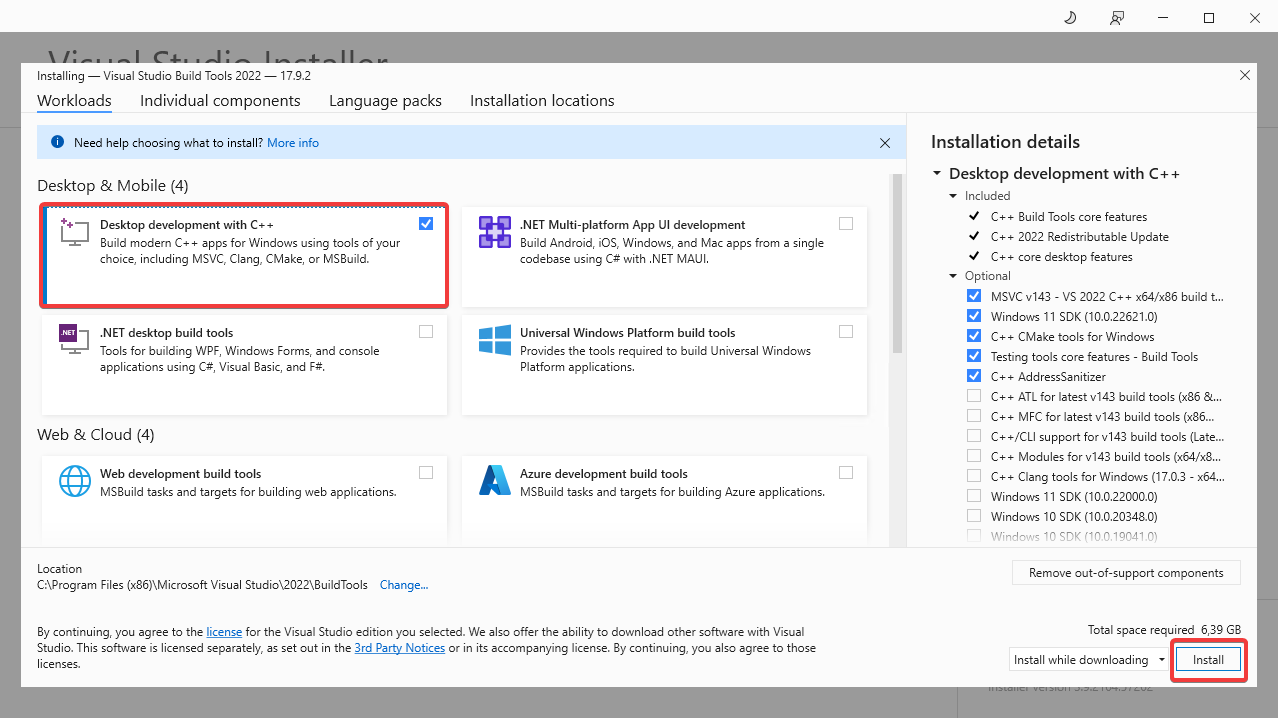
Once the installation is complete, the Visual Studio Build Tools will
automatically open. From this window select the <code>Desktop development with C++</code>.
This will install the required components for the OpenStack CLI to work. Click
the <code>Install</code> button to start the installation.</p>

<p><img class="rounded border border-dark" src="/assets/images/2024-03-04-using-the-cli/install-cplusplus.png" width="auto" height="400" /></p>

<p>After the installation has finished proceed to <a href="#installing-python3">Installing Python3</a>.</p>

<hr />

<h3 id="installing-python3">Installing Python3</h3>
<p>Since the OpenStack Client is build with Python3 we will have to install
python3 on our system first.</p>

<p><strong>Step 1</strong><br />
Navigate to the <a href="https://www.python.org/downloads/">Python Downloads</a> page and
download the latest version of Python3. (Do not download the pre-release
version)</p>

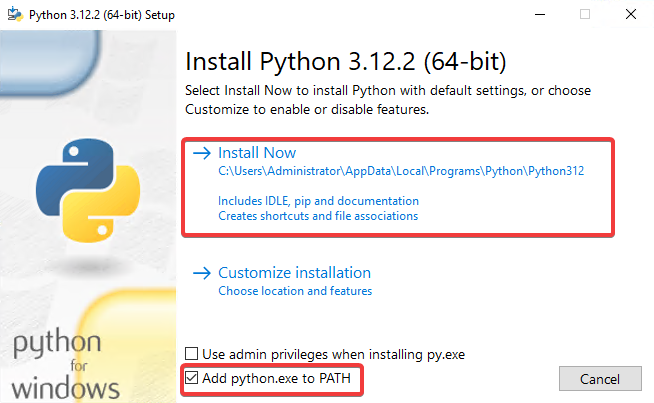
<p><strong>Step 2</strong><br />
Run the installer and make sure to check the box that says <code>Add Python 3.x to
PATH</code> and click <code>Install Now</code>.</p>

<p><img class="rounded border border-dark" src="/assets/images/2024-03-04-using-the-cli/python3-install-windows.png" width="auto" height="400" /></p>

<p>After the installation has finished proceed to
<a href="#installing-the-openstack-cli">Installing the OpenStack CLI</a>.</p>

<hr />

<h3 id="installing-the-openstack-cli">Installing the OpenStack CLI</h3>
<p>Now that we have prepared the environment by installing the required components
we can now install the OpenStack CLI.</p>

<p><strong>Step 1</strong><br />
Open PowerShell you can do this by hitting <code>WIN + R</code> in the input box that
appears you type <code>PowerShell</code> and hit <code>Enter</code>.</p>

<p><strong>Step 2</strong><br />
Within the PowerShell window run the following command to make sure we have
the latest version of pip installed.</p>
<pre><code class="language-PowerShell">python -m pip install --upgrade pip
</code></pre>

<p><strong>Step 3</strong><br />
Now that we are sure that we have the latest version of pip we can install the
OpenStack CLI.</p>

<pre><code class="language-PowerShell">pip install python-openstackclient
</code></pre>

<p>After the installation has finished proceed to
<a href="#preparing-your-openstack-credentials">Preparing your OpenStack Credentials</a>.</p>

<hr />

<h3 id="preparing-your-openstack-credentials">Preparing Your OpenStack Credentials</h3>
<p>After installing the OpenStack CLI, we need to prepare our credentials to make
sure we are able to login using the OpenStack CLI.</p>

<p><strong>Step 1</strong><br />
First we will create a file to store our OpenStack credentials. In this
tutorial we will use the <code>clouds.yaml</code> file to store our credentials. You
can also use environment variables to store your credentials using the
<code>openrc</code> file altough the openrc file does not by default on Windows.</p>

<p>Since we already have our PowerShell open we proceed with creating the
OpenStack configuration directory using PowerShell. You can also create the
directory yourself if you prefer.</p>
<pre><code class="language-PowerShell">New-Item -ItemType Directory -Force -Path "$env:USERPROFILE\.config\openstack"
</code></pre>

<blockquote>
  <p>Note: If you want to create the directory by hand using windows explorer
the directory structure should look like:
<code>C:\Users\&lt;username&gt;\.config\openstack</code></p>
</blockquote>

<p><strong>Step 2</strong><br />
We will now create the clouds.yaml file, the next step will describe how to
populate the file with the necessary information.</p>

<pre><code class="language-PowerShell">New-Item -Path "$env:USERPROFILE\.config\openstack\clouds.yaml" -ItemType File
</code></pre>

<blockquote>
  <p>Note: When creating the clouds.yaml manually using for example Windows
Explorer make sure you create a <code>clouds.yaml</code> file and not accidentaly create a
<code>clouds.yaml.txt</code> file which is not recognized by the OpenStack CLI.</p>
</blockquote>

<p><strong>Step 3</strong><br />
Now that we have created the clouds.yaml file we will open the clouds.yaml file
using notepad. The following command will start Notepad with the clouds.yaml
you can also chose to open the file manually using Windows Explorer.</p>

<pre><code class="language-PowerShell">Start-Process notepad.exe -ArgumentList "$env:USERPROFILE\.config\openstack\clouds.yaml"
</code></pre>

<blockquote>
  <p>Note: If you want to open the clouds.yaml file manually using Windows
Explorer you can find the clouds.yaml file in:
<code>C:\Users\&lt;username&gt;\.config\openstack</code></p>
</blockquote>

<p><strong>Step 4</strong><br />
In the clouds.yaml file add the following content to it. Replace: <code>region</code>,
<code>&lt;cloud_name&gt;</code>, <code>&lt;auth_url&gt;</code>, <code>&lt;username&gt;</code>, <code>&lt;password&gt;</code>, <code>&lt;project_name&gt;</code>, <code>&lt;project_id&gt;</code>,
<code>&lt;user_domain_name&gt;</code>, and <code>&lt;project_domain_name&gt;</code> with your OpenStack
credentials.</p>

<pre><code class="language-yaml">clouds:
  &lt;cloud_name&gt;:
    auth:
      auth_url: &lt;auth_url&gt;
      username: "&lt;username&gt;"
      project_id: &lt;project_id&gt;
      project_name: "&lt;project_name&gt;"
      user_domain_name: "&lt;user_domain_name&gt;"
      password: "&lt;password&gt;"
    region_name: "&lt;region&gt;"
    interface: "public"
    identity_api_version: 3
</code></pre>

<blockquote>
  <p>Note: The cloud_name can be any name you want to give to your cloud. We
recommend using the region name as the cloud name.</p>
</blockquote>

<blockquote>
  <p>Note: If you do not know all information, you can download the clouds.yaml
file from the OpenStack dashboard. Go to the OpenStack dashboard, click on
<code>Project</code> and then <code>API Access</code>. Click on <code>DOWNLOAD OPENSTACK RC FILE</code> and
click on <code>OPENSTACK CLOUDS.YAML FILE</code>. This will download the clouds.yaml file
with all the necessary information.</p>
</blockquote>

<blockquote>
  <p>Note: For security reasons you may want to remove the <code>password</code> line from 
the clouds.yaml file, when you enter a command in the OpenStack CLI your
password will be asked for.</p>
</blockquote>

<p><strong>Step 5</strong><br />
After entering the correct information in the clouds.yaml file we can now save
the clouds.yaml file by pressing <code>CTRL + S</code> and then close the file by clicking
on the <code>X</code> in the top right corner of the Notepad window or
pressing <code>ALT + F4</code> in the notepad Window.</p>

<p>After you have configured your credentials you can procceed to
<a href="#using-the-openstack-cli">Using the OpenStack CLI</a> to test if
the OpenStack CLI works.</p>

<hr />

<h2 id="using-the-openstack-cli">Using the OpenStack CLI</h2>
<p>Now that we have installed the OpenStack CLI, we can use the OpenStack CLI to
manage our OpenStack resources.</p>

<p>First we we need to specify the cloud (project/region) we want to use. make
sure to replace <code>&lt;cloud_name&gt;</code> with the name you used in the <code>clouds.yaml</code>
file.</p>

<pre><code class="language-PowerShell">$env:OS_CLOUD=&lt;cloud_name&gt;
</code></pre>

<p>Now we can use the OpenStack CLI to manage our OpenStack resources.
For example, to list all the available images, run the following command:</p>

<pre><code class="language-PowerShell">openstack image list
</code></pre>

<p>To list all openstack instances (servers), run the following command:</p>
<pre><code class="language-PowerShell">openstack flavor list
</code></pre>

<p>Your are now ready to use the OpenStack CLI to manage your OpenStack resources.
The OpenStack CLI has many more commands and options, so be sure to check the
<a href="https://docs.openstack.org/python-openstackclient/latest/cli/index.html">OpenStack CLI documentation</a></p>

<blockquote>
  <p>Note: Instead of setting the <code>OS_CLOUD</code> environment variable you can also
specify the cloud using the <code>--os-cloud</code> option in the OpenStack CLI commands.</p>
</blockquote>]]></content><author><name>CloudTutorials</name></author><category term="Getting-Started" /><summary type="html"><![CDATA[For Linux installations please see Using the OpenStack CLI (Linux)]]></summary></entry><entry><title type="html">Create a volume</title><link href="https://cloudtutorials.eu/articles/create-a-volume" rel="alternate" type="text/html" title="Create a volume" /><published>2024-03-01T00:00:00+00:00</published><updated>2024-03-01T00:00:00+00:00</updated><id>https://cloudtutorials.eu/articles/create-a-volume</id><content type="html" xml:base="https://cloudtutorials.eu/articles/create-a-volume"><![CDATA[<p>Volumes are an essential part of OpenStack to store your data. Volumes are 
block storage devices that are attached to instances. They are independent
from the life cycle of the instance, and can be attached and detached to
instances as needed.</p>

<p>This articles will guide you through the process of creating a volume.</p>

<h2 id="using-the-openstack-dashboard">Using the OpenStack Dashboard</h2>
<p>Creating a volume through the OpenStack Dashboard is a simple process.</p>

<p><strong>Step 1</strong><br />
Log in to the OpenStack Dashboard</p>

<p><strong>Step 2</strong><br />
Navigate to the <code>VOLUMES</code> section and click on <code>Volumes</code></p>

<p><strong>Step 3</strong><br />
Click on <code>Create Volume</code> button right above the volume list.</p>

<p><strong>Step 4</strong><br />
Fill in the details of the volume you want to create. You can specify the size
of the volume, the availability zone, and the volume type. Please feel free
to change any of the example settings to your needs.</p>

<ul>
  <li><strong>Volume Name</strong>: data-volume</li>
  <li><strong>Description</strong>: This is a volume for storing data</li>
  <li><strong>Volume Source</strong>: NO SOURCE, EMPTY VOLUME (please see the note below)</li>
  <li><strong>Type</strong>: SSD (please see the note below)</li>
  <li><strong>Size (GiB)</strong>: 10</li>
  <li><strong>Availability Zone</strong>: ANY AVAILABILITY ZONE (please see the note below)</li>
  <li><strong>Group</strong>: NO GROUP (please see the note below)</li>
</ul>

<blockquote>
  <p><strong>Note</strong>: The <code>Volume Source</code> field is used to create a volume from an
existing volume, snapshot, or image. If you want to create an empty volume, 
select <code>NO SOURCE, EMPTY VOLUME</code>.</p>
</blockquote>

<blockquote>
  <p><strong>Note</strong>: The <code>Type</code> field is often used to provide different specifications
or storage tiers. Some volume types might support volume encryption as well.
Most OpenStack providers provide distinct naming for encrypted volume types.</p>
</blockquote>

<blockquote>
  <p><strong>Note</strong>: The <code>Availability Zone</code> field is used to specify the availability
zone where the volume will be created. This is important since volumes cannot
be attached to instances in different availability zones.</p>
</blockquote>

<blockquote>
  <p><strong>Note</strong>: The <code>Group</code> field is used to specify the volume group where the
volume will be created. This is can be a handy tool if you have multiple volume
in your OpenStack environment and want to group them together.</p>
</blockquote>

<p><strong>Step 5</strong><br />
Click on the small arrow button behind the newly created volume to see actions
menu and click on <code>Manage Attachments</code></p>

<p><strong>Step 6</strong><br />
Select the instance you want to attach the volume to and click on
<code>Attach Volume</code> to attach the volume to the instance.</p>

<hr />

<h2 id="using-the-openstack-cli">Using the OpenStack CLI</h2>
<p>Creating a volume through the OpenStack CLI can be a bit more complicated than
using the OpenStack Dashboard, but when you get the hang of it, it can be a
powerful tool.</p>

<p><strong>Step 1</strong><br />
First make sure you have setup the OpenStack CLI and that you are able to
execute commands using the <code>openstack</code> command. For more information please
refer to the
<a href="/articles/using-the-cli-linux">Using the OpenStack CLI article</a>.</p>

<p><strong>Step 2</strong><br />
Run the following command to create a volume:</p>

<pre><code class="language-bash">openstack volume create --size &lt;volume_size --type &lt;volume_type&gt; --availability-zone &lt;availability_zone&gt; &lt;volume_name&gt;
</code></pre>
<blockquote>
  <p><strong>Note</strong>: The <code>volume_type</code> is often used to provide different specifications
or storage tiers. Some volume types might support volume encryption as well.
Consult the documentation of your OpenStack providers to select the proper volume
type.</p>
</blockquote>

<p><strong>Step 3</strong><br />
Check the status of the volume by running the following command:</p>

<pre><code class="language-bash">openstack volume show &lt;volume_name&gt;
</code></pre>

<p><strong>Step 4</strong><br />
Attach the volume to an instance by running the following command:</p>

<pre><code class="language-bash">openstack server add volume &lt;instance_name/instance_id&gt; &lt;volume_name/volume_id&gt;
</code></pre>

<hr />

<h2 id="mounting-the-volume-within-the-instance">Mounting the volume within the instance</h2>
<p>After you have created and attached the volume to an instance, you can mount
the volume within the instance. The process of mounting a volume is different
for each operating system.</p>

<p>Be default the volume is just empty diskspace which you can use as you like.
The following steps will guide you through the process of mounting the volume
an adding an filesystem to it so you can use it to store your data.</p>

<p><a href="#linux">Instruction for Linux</a></p>

<p><a href="#windows">Instruction for Windows</a></p>

<h3 id="linux">Linux</h3>
<p><strong>Step 1</strong><br />
You can identify the volume by its size and mountpoint. For example, if the
volume is 10GB and has no mountpoint, it is likely the volume you just
created. it will probably look simular to <code>/dev/sdb</code> but it may be different.</p>

<p>List the available disks on the instance by running the following command:</p>

<pre><code class="language-bash">lsblk
</code></pre>

<blockquote>
  <p><strong>Note</strong>: The mountpoint displayed in OpenStack might not be the same as the
mountpoint in the instance.</p>
</blockquote>

<p><strong>Step 2</strong><br />
Create a new partition on the volume by running the following command:</p>

<pre><code class="language-bash">sudo fdisk &lt;volume&gt;
</code></pre>

<p><strong>Step 3</strong><br />
Format the partition by running the following command:</p>

<pre><code class="language-bash">sudo mkfs.ext4 &lt;volume&gt;
</code></pre>

<blockquote>
  <p><strong>Note</strong>: You can choose any filesystem to format the partition. In this
example, we are using <code>ext4</code>.</p>
</blockquote>

<p><strong>Step 4</strong><br />
Create a new directory to mount the volume by running the following command:</p>

<pre><code class="language-bash">sudo mkdir /mnt/data-volume
</code></pre>

<blockquote>
  <p><strong>Note</strong>: You can choose any directory to mount the volume. In this example,
we are using <code>/mnt/data-volume</code>.</p>
</blockquote>

<p><strong>Step 5</strong><br />
Mount the volume by running the following command:</p>

<pre><code class="language-bash">sudo mount &lt;volume&gt; /mnt/data-volume
</code></pre>

<p>You can now use the volume to store your data.</p>

<hr />

<h4 id="mounting-the-volume-automatically">Mounting the volume automatically</h4>
<p>If you want to mount the volume automatically after a reboot, we need to add
an entry to the <code>/etc/fstab</code> file.</p>

<p>When managing multiple volumes on a single instance, it might be more feasible 
to use the procedure on 
<a href="/articles/identify-volumes">Identify cinder volumes from within the instance</a>.
Or use the steps below. Both procedures result in an automatically mounted volume</p>

<p><strong>Step 1</strong><br />
First we need to identify the volume by its UUID. You can do this by running
the following command:</p>

<p>You are looking for the UUID of the volume you just created. It will probably
look something like <code>85ca773c-a78b-415e-b1cd-2c4f1a1d267f</code>. Make sure you copy
the UUID of the correct volume. it should be the same path as in the steps
above (for example: <code>/dev/sdb</code>).</p>

<pre><code class="language-bash">sudo blkid
</code></pre>

<p><strong>Step 2</strong><br />
Now we need to add an entry to the <code>/etc/fstab</code> file. We will use the UUID we
found in the previous step to identify the volume.</p>

<pre><code class="language-bash">sudo nano /etc/fstab
</code></pre>

<p>Now add the following line to the bottom of the file:</p>
<pre><code class="language-fstab">UUID=&lt;linux_volume_id&gt; /mnt/data-volume ext4 defaults 0 0
</code></pre>

<p>To save the file press <code>CTRL + X</code>, then <code>Y</code>, and then <code>ENTER</code>.</p>

<p><strong>Step 3</strong><br />
Test the <code>/etc/fstab</code> file by running the following command:</p>

<pre><code class="language-bash">sudo mount -a
</code></pre>

<p>The volume should now be mounted automatically after a reboot. If you received
an error, please check the <code>/etc/fstab</code> file for any errors.</p>

<hr />

<h3 id="windows">Windows</h3>
<p><strong>Step 1</strong><br />
Right-click the windows logo in the left bottom corner and click
on <code>Disk Management</code>.<br />
<img class="rounded border border-dark" src="/assets/images/2024-02-28-resize-volume/2024-02-28-open-diskmanagement.png" width="auto" height="400" /></p>

<p><strong>Step 2</strong><br />
Right click on the Disk you want to prepare and online the disk to be able
to use the disk.<br />
<img class="rounded border border-dark" src="/assets/images/2024-03-01-create-a-volume.md/online_disk.png" width="auto" height="400" /></p>

<p><strong>Step 3</strong><br />
Right click on the Disk you want to prepare and click on <code>Initialize Disk</code>.<br />
<img class="rounded border border-dark" src="/assets/images/2024-03-01-create-a-volume.md/initialize_disk.png" width="auto" height="400" /></p>

<p><strong>Step 4</strong><br />
In the <code>Initialize Disk</code> window, select the disk you want to initialize, select
the <code>GPT (GUID Partition Table)</code> and click on <code>OK</code>.<br />
<img class="rounded border border-dark" src="/assets/images/2024-03-01-create-a-volume.md/initialize_disk_wizard.png" width="auto" height="400" /></p>

<p><strong>Step 5</strong><br />
Right click on the unallocated space and click on <code>New Simple Volume</code>. You
can just click on <code>Next</code> in the <code>New Simple Volume Wizard</code> to use the default
settings. You can change the drive letter and the volume label if you want.<br />
<img class="rounded border border-dark" src="/assets/images/2024-03-01-create-a-volume.md/new_simple_volume.png" width="auto" height="400" /></p>

<p>Your disk is now ready to use, you can access it through Window Explorer and 
use the disk to store you data.</p>]]></content><author><name>CloudTutorials</name></author><category term="Volume" /><summary type="html"><![CDATA[Volumes are an essential part of OpenStack to store your data. Volumes are block storage devices that are attached to instances. They are independent from the life cycle of the instance, and can be attached and detached to instances as needed.]]></summary></entry><entry><title type="html">Resize a volume</title><link href="https://cloudtutorials.eu/articles/resize-volume" rel="alternate" type="text/html" title="Resize a volume" /><published>2024-02-28T00:00:00+00:00</published><updated>2024-02-28T00:00:00+00:00</updated><id>https://cloudtutorials.eu/articles/resize-volume</id><content type="html" xml:base="https://cloudtutorials.eu/articles/resize-volume"><![CDATA[<h2 id="introduction">Introduction</h2>
<p>Volumes are a great way to store data for your instances. However, sometimes
you may need to resize a volume to add more space. This article will guide you
through the process of resizing a volume within OpenStack and resizing the
filesystem within the instance (server). For most OpenStack environments, 
a live extend is possible.</p>

<h2 id="using-the-openstack-dashboard">Using the OpenStack Dashboard</h2>
<p>To resize a volume using the OpenStack Dashboard, please follow these steps:<br />
<strong>Step 1</strong><br />
First log in to the OpenStack Dashboard</p>

<p><strong>Step 2</strong><br />
Navigate to the <code>Volumes</code> section</p>

<p><strong>Step 3</strong><br />
Click on the volume you want to resize</p>

<p><strong>Step 4</strong><br />
Click on the <code>Small Arrow</code> button behind the volume and click <code>Extend Volume</code></p>

<p><strong>Step 5</strong><br />
Enter the new size of the volume and click <code>Extend Volume</code></p>

<p>Your volume is now be resized within OpenStack. Please note that you may need
to extend your filesystem within the instance (server) as well before you are
able to use the new space. To do this please proceed to the section: 
<a href="#resize-filesystem-within-the-instance">Resize filesystem within the instance</a></p>

<hr />

<h2 id="using-the-openstack-cli">Using the OpenStack CLI</h2>
<p>To resize a volume using the OpenStack CLI, please follow these steps:</p>

<p><strong>Step 1</strong><br />
First make sure you have setup the OpenStack CLI and that you are able to
execute commands using the <code>openstack</code> command. For more information please
refer to the
<a href="/articles/using-the-cli-linux">Using the OpenStack CLI article</a>.</p>

<p><strong>Step 2</strong><br />
Identitfy the volume you want to resize we do this by listing the volumes</p>
<pre><code class="language-bash">openstack volume list
</code></pre>

<p><strong>Step 3</strong><br />
Run the following command to resize the volume</p>
<pre><code class="language-bash">openstack --os-volume-api-version 3.42 volume set --size &lt;new-size-in-gb&gt; &lt;volume-id-or-name&gt;
</code></pre>

<p>Your volume is now be resized within OpenStack. Please note that you may need
to extend your filesystem within the instance (server) as well before you are
able to use the new space. To do this please proceed to the section: 
<a href="#resize-filesystem-within-the-instance">Resize filesystem within the instance</a></p>

<hr />

<h2 id="resize-filesystem-within-the-instance">Resize filesystem within the instance</h2>

<p>For both Linux and Windows, you will need to resize the filesystem within the
instance (server) as well.</p>

<p><a href="#linux">Instructions for Linux</a></p>

<p><a href="#windows">Instructions for Windows</a></p>

<h3 id="linux">Linux</h3>
<p>After resizing the volume within OpenStack, you will need to resize the
filesystem within the instance (server) as well.</p>

<p><strong>Step 1</strong><br />
First we need to identify the volume. This can be done using the <code>lsblk</code> command.</p>
<pre><code class="language-bash">lsblk
</code></pre>

<p><strong>Step 2</strong><br />
<em>The folowing step is only required if you have partitions on the volume.</em><br />
If you have partitions on the volume, you will need to resize the partition
before resizing the filesystem. This can be done using the <code>growpart</code> command.</p>
<pre><code class="language-bash">sudo growpart &lt;disk&gt; &lt;partion_number&gt;
</code></pre>
<p><strong>Step 3</strong><br />
After you will need to resize the filesystem. This can be done using
the <code>resize2fs</code> command.</p>
<pre><code class="language-bash">resize2fs &lt;disk/partition&gt;
</code></pre>

<hr />

<h3 id="windows">Windows</h3>
<p>After resizing the volume within OpenStack, you will need to resize the
filesystem within the instance (server) as well. We recommend using the
documentation provided by Microsoft to <a href="https://learn.microsoft.com/en-us/windows-server/storage/disk-management/extend-a-basic-volume">resize the filesystem</a>.</p>

<p><a href="#using-disk-management">Instruction for resizing using Disk Management</a></p>

<p><a href="#using-powershell">Instruction for resizing using PowerShell</a></p>

<h4 id="using-disk-management">Using Disk Management</h4>

<p>Right-click the windows logo in the left bottom corner and click
on <code>Disk Management</code>.<br />
<img class="rounded border border-dark" src="/assets/images/2024-02-28-resize-volume/2024-02-28-open-diskmanagement.png" width="auto" height="400" /></p>

<p>Right-click the volume you want to resize and click <code>Extend Volume</code>.<br />
<img class="rounded border border-dark" src="/assets/images/2024-02-28-resize-volume/2024-02-28-diskmanagement.png" width="auto" height="500" /></p>

<p>Follow the wizard to extend the volume and click <code>Finish</code> to complete the
process.</p>
<blockquote>
  <p>If you want to use all of the available space, you can just click <code>Next</code> and
then <code>Finish</code> in the wizard.</p>
</blockquote>

<h4 id="using-powershell">Using PowerShell</h4>
<p>To resize the filesystem using PowerShell, you can use the <code>Resize-Partition</code>
cmdlet. The Powershell script below will resize the partition to the maximum
size. Replace <code>&lt;drive_letter&gt;</code> with the drive letter of the partition you want
to resize.</p>
<pre><code class="language-powershell"># Set the drive/partition you want to resize
$TargetDrive = "&lt;drive_letter&gt;"

# Get the maximum size of the partition
$DriveSize = (Get-PartitionSupportedSize -DriveLetter $TargetDrive)

# Resize the partition
Resize-Partition -DriveLetter $TargetDrive -Size $DriveSize.SizeMax
</code></pre>]]></content><author><name>CloudTutorials</name></author><category term="Volume" /><summary type="html"><![CDATA[Introduction Volumes are a great way to store data for your instances. However, sometimes you may need to resize a volume to add more space. This article will guide you through the process of resizing a volume within OpenStack and resizing the filesystem within the instance (server). For most OpenStack environments, a live extend is possible.]]></summary></entry><entry><title type="html">Introduction into loadbalancers</title><link href="https://cloudtutorials.eu/articles/introduction-into-loadbalancer" rel="alternate" type="text/html" title="Introduction into loadbalancers" /><published>2024-02-26T00:00:00+00:00</published><updated>2024-02-26T00:00:00+00:00</updated><id>https://cloudtutorials.eu/articles/introduction-into-loadbalancer</id><content type="html" xml:base="https://cloudtutorials.eu/articles/introduction-into-loadbalancer"><![CDATA[<p>In this article, the basic concept of OpenStack Octavia loadbalancers are
explained. This includes the uses, options, benefits and how to create a
loadbalancer.</p>

<h2 id="introduction">Introduction</h2>
<p>Loadbalancers can be an essential part of a cloud infrastructure. Loadbalancers
can be used to distribute the incoming traffic to multiple servers. This can in
turn increase the availability of the servers and the applications. OpenStack
Octavia is a loadbalancer service that provides loadbalancing services to the
OpenStack cloud. Octavia is a on-demand and reliable loadbalancer service.
Octavia is a replacement for the older Neutron LBaaS service.</p>

<hr />

<h2 id="types-of-loadbalancers">Types of loadbalancers</h2>
<p>There are two types of Loadbalancers in OpenStack Octavia which can be used to
create your Loadbalancer setup.</p>

<h3 id="single-loadbalancer">Single Loadbalancer</h3>
<p>A single loadbalancer setup is a simple setup where a single loadbalancer is
used to distribute the incoming traffic to the backend servers/applications.
This setup is suitable for non-critical applications because if the
loadbalancer fails, the whole setup will be down.</p>

<h3 id="activestandby-loadbalancer-high-availability">Active/Standby Loadbalancer (High Availability)</h3>
<p>The Active/Standby Loadbalancer setup is a more reliable setup where the standy
loadbalancer will take over the traffic if the active loadbalancer fails. This
setup is highly recommended and essential for critical applications. This setup
can be used to make sure the availability of the servers and applications can
be assured.</p>

<h3 id="flavors">Flavors</h3>
<p>Loadbalancer flavors are used to chose between the Single and Active/Standby
Loadbalancer setups. Most of the time, the Active/Standby Loadbalancer setup is
used because of its reliability and availability. Loadbalancer flavors are also
used to define the performance of the loadbalancer. The flavors can be used to
define the performance of the loadbalancer like the number of connections, the
number of requests, the bandwidth, vice versa. Based on your requirements, you
can choose the flavor that suits your needs. Most providers indicate the
performance of the loadbalancer in the flavor description.</p>

<hr />

<h2 id="listeners">Listeners</h2>
<p>Listeners are used to define the incoming traffic to the loadbalancer. The
listeners are used to define the protocol, port, and the <a href="#pools">pool</a> to
which the traffic should be forwarded.</p>

<hr />

<h2 id="pools">Pools</h2>
<p>A pool is a group of backend servers or applications to which the traffic
should be forwarded. The pools are used to define the protocol, the algorithm,
and the backend servers for the specific <a href="#listeners">Listener</a>.</p>

<h3 id="loadbalancer-algorithms">Loadbalancer Algorithms</h3>
<p>Pool algorithms are used to define the way the traffic should be distributed to
the backend servers.</p>
<ul>
  <li><strong>Round Robin</strong>: is used to distribute the traffic to the backend servers in
a circular order.</li>
  <li><strong>Least Connections</strong>: is used to distribute the traffic to the backend
servers based on the number of connections towards the backend servers.</li>
  <li><strong>Source IP</strong>: is used to distribute the traffic to the backend servers
based on the source IP of the incoming traffic.</li>
</ul>

<h3 id="session-persistence">Session Persistence</h3>
<p>Session persistence is used to make sure that the traffic from the same client
is always forwarded to the same backend server. This is used to make sure that
the session data is always available on the same server. This is essential for
applications that require session data to be available on the same server.
OpenStack Octavia currently supports the following Session persistence methods:</p>
<ul>
  <li><strong>HTTP_COOKIE</strong>: is used to make sure that the traffic from the same client
is always forwarded to the same backend server based on the HTTP cookie.</li>
  <li><strong>APP_COOKIE</strong>: is used to make sure that the traffic from the same client is
always forwarded to the same backend server, uses a hashmap in memory of the
loadbalancer and are less reliable then HTTP cookies.</li>
  <li><strong>SOURCE_IP</strong>: is used to make sure that the traffic from the same client is
always forwarded to the same backend server based on the source IP of the
incoming traffic.</li>
</ul>

<hr />

<h2 id="monitors">Monitors</h2>
<p>Monitors are used to define the health of the backend servers. The monitors are
used to define the protocol, the interval, the timeout, the retries, and the
status of the backend servers. Whenever a backend server or application is
down, the monitor will mark the server as down and the traffic will not be
forwarded to that server anymore. This way you can make sure that the traffic
is only forwarded to the healthy servers to avoid downtime for the users.</p>

<hr />

<h2 id="ssl-termination-https">SSL Termination (HTTPS)</h2>
<p>SSL Termination is used to decrypt the incoming traffic and forward it to the
backend servers. This is used to offload the SSL encryption from the backend
servers. This way the backend servers can focus on the application and the
loadbalancer can focus on the SSL encryption. The storage of the SSL
certificates is be done with OpenStack Barbican (Secret Manager) and can be 
added to the loadbalancers on creation or at a later point. It is required to
use the <code>TERMINATED_HTTPS</code> listener  protocol to enable SSL Termination at the
Loadbalancer.</p>

<hr />

<h2 id="where-to-place-your-loadbalancer">Where to place your loadbalancer</h2>
<p>Chosing the best location for you loadbalancer can be an essential part of the
setup. We recommend checking the geographical location of the backend servers
to make sure the loadbalancer is placed in the desired region/availability
zone (AZ).</p>

<p>Loadbalancers can be used to forward external traffic to the backend servers
but they may also be used to forward internal traffic within your private
network. This is something to keep in mind when desiging your cloud
infrastructure.</p>

<hr />

<h2 id="recommendations">Recommendations</h2>
<p>When creating a loadbalancer setup, it is recommended to use the Active/Standby
Loadbalancer setup. This is because of the reliability and availability of the
setup. The Active/Standby Loadbalancer are setup to make sure the availability
of the servers and applications can be assured whenever one of the
loadbalancers fails.</p>

<p>When you create a loadbalancer we recommend to use an Floating IP address for
the loadbalancer. This way we can always swap the IP between loadbalancers in
case you want to upgrade or replace the loadbalancer.</p>

<hr />

<h2 id="conclusion">Conclusion</h2>
<p>Loadbalancers can be an essential part of a cloud infrastructure. Loadbalancers
can be used to distribute the incoming traffic to multiple servers. This can in
turn increase the availability of the servers and the applications. OpenStack
Octavia provides a on-demand and reliable loadbalancer service which is easy to
use and manage for your cloud infrastructure.</p>

<p>Now that you know everything you need to know about loadbalancers, you can
start creating your own loadbalancer setup. We highly recommend to read the
article about <a href="/articles/create-a-loadbalancer-with-webservers">creating a loadbalancer with webservers</a> to get
started with OpenStack Octavia.</p>]]></content><author><name>CloudTutorials</name></author><category term="Loadbalancers" /><summary type="html"><![CDATA[In this article, the basic concept of OpenStack Octavia loadbalancers are explained. This includes the uses, options, benefits and how to create a loadbalancer.]]></summary></entry></feed>